Free
Convert PDF pages to JPG or PNG
One image per page, at the resolution you choose. Free.
Free, with no account, no watermark and no page limit.
Updated 25 October 2026
The short answer
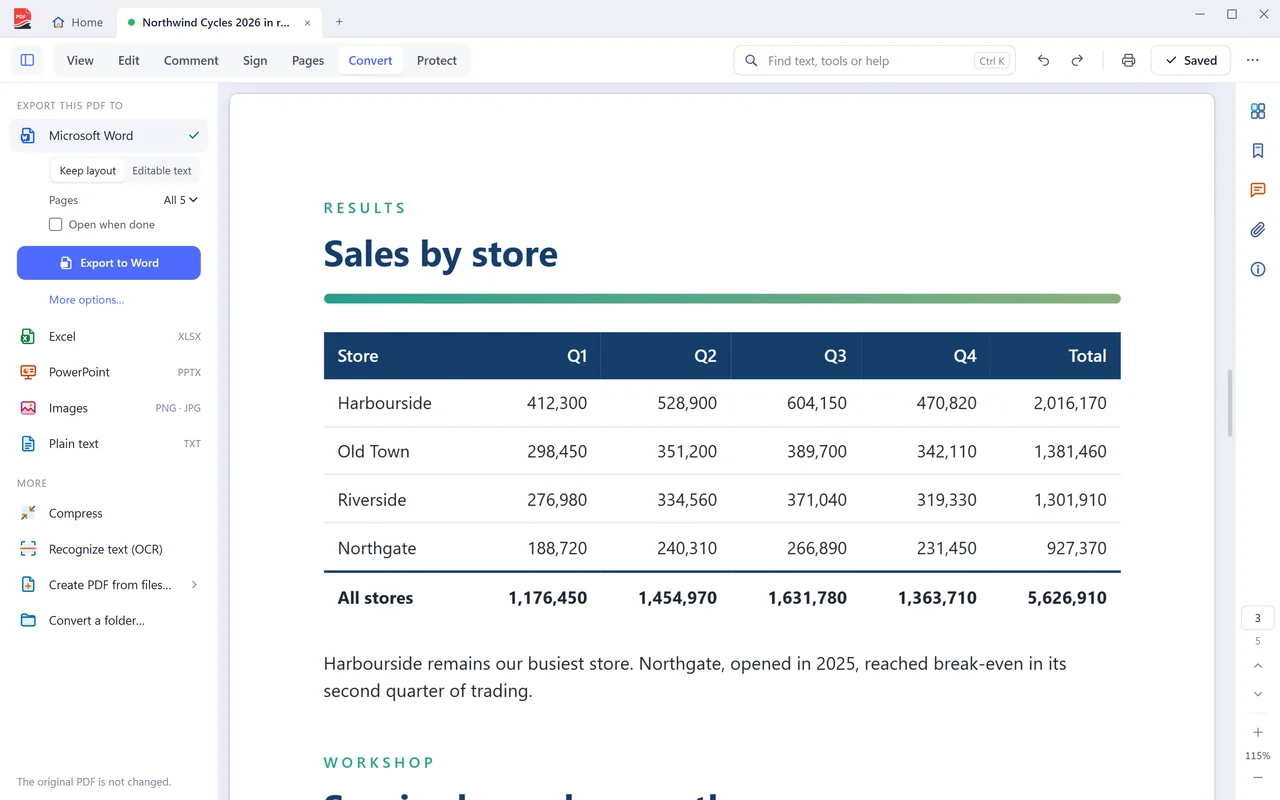
PDF Coast saves the pages of a PDF as images on your own PC, for free. Open the PDF, choose Convert at the top of the window, then Images. Pick PNG or JPEG, the pages you want and the resolution, then save. Nothing is uploaded and there is no watermark.
- Price
- Free, no watermark
- Your file
- Stays on your PC, never uploaded
- Internet
- Not needed
- Works on
- Windows 10 and 11
How to do it
- Open the PDF in PDF Coast.
- Choose Convert at the top of the window, then Images.
- Choose PNG or JPEG, the page range and the resolution.
- Save. You get one numbered image file per page.
PDF to JPG online, or on your PC?
Online converters are handy on a phone. For anything private, a desktop app is safer.
 PDF Coast PDF Coast |
Typical online converter | |
|---|---|---|
| Your file is uploaded | Never | Yes, to their servers |
| Works without internet | Yes | No |
| Limits on free use | None on free tools | Daily or file-size limits are common |
| Account | Not needed | Often needed after a few files |
Questions
PNG or JPEG?
PNG for pages that are mostly text or line art, because small type stays sharp. JPEG for pages that are mostly photos, because the files are much smaller.
What resolution should I use?
The default is fine for viewing on screen. Choose a higher setting for printing or for running OCR later.
Is it free?
Yes, with no account and no watermark. Exporting the text of a PDF is free as well.
Is my file uploaded anywhere?
No. PDF Coast opens and saves the file on your own computer, and works with the internet switched off. Nothing about the document is sent anywhere.
Related tools
-
Pro
PDF to Word
An editable .docx with real paragraphs, tables, headers and footers. Converted on your PC.
-
Pro
PDF to Excel
Real cells and real numbers, ready to sort, filter and total.
-
Pro
PDF to PowerPoint
Each page becomes a slide, with text you can edit and pictures you can move.
-
Free
JPG to PDF
Photos, screenshots and phone scans become one tidy PDF. Free.
-
Free
Word to PDF
A .docx, .xlsx or .pptx becomes a PDF with its layout intact. Free.
-
Free
Scan to PDF
From the scanner to a finished PDF in one step. Free.
-
Pro
OCR a scanned PDF
Recognize the text in a scan without sending the scan anywhere.
Get PDF Coast for free
Everyday PDF work is free forever. Pro is US$26.49 once, and you can try every Pro tool free for 14 days. No account, no card, no subscription.
Windows 10 and 11, 64-bit. English, 简体中文 and 繁體中文.