Free
Merge PDF files into one
Combine as many PDFs as you like, in the order you want. Free.
Free, with no account, no watermark and no page limit.
Updated 25 October 2026
The short answer
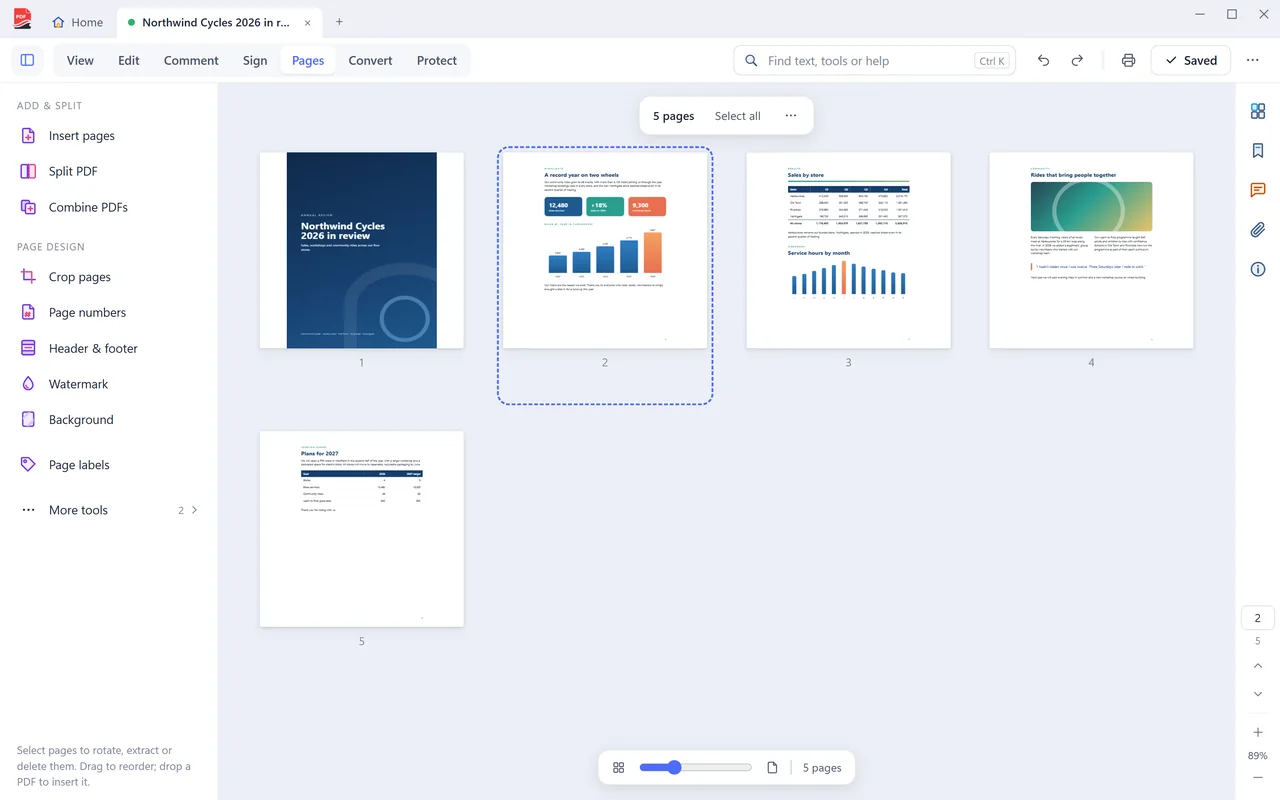
PDF Coast merges PDF files on your own PC, for free. Choose Combine PDFs on the Home screen, add the files, drag them into order and save. Files are never uploaded, there is no page or size limit, and nothing is watermarked.
- Price
- Free, no watermark
- Your file
- Stays on your PC, never uploaded
- Internet
- Not needed
- Works on
- Windows 10 and 11
How to do it
- Choose Combine PDFs on the Home screen.
- Add the PDFs you want to join, or drop them onto the window.
- Drag the files into order and remove any you do not need.
- Save the combined file. Your original PDFs are not changed.
Merge PDF online, or on your PC?
Online converters are handy on a phone. For anything private, a desktop app is safer.
 PDF Coast PDF Coast |
Typical online converter | |
|---|---|---|
| Your file is uploaded | Never | Yes, to their servers |
| Works without internet | Yes | No |
| Limits on free use | None on free tools | Daily or file-size limits are common |
| Account | Not needed | Often needed after a few files |
Questions
Is merging PDFs free?
Yes, permanently, with no page limit, no size limit and no watermark.
Are my files uploaded?
No. PDF Coast works on your PC and has no cloud service, which matters when the files are contracts, payslips or medical forms.
Can I merge a password-protected PDF?
Yes, if you know the password. PDF Coast asks for it when the file opens.
Is my file uploaded anywhere?
No. PDF Coast opens and saves the file on your own computer, and works with the internet switched off. Nothing about the document is sent anywhere.
Related tools
-
Free
Split PDF
Break one document into several, or take out just the pages you need.
-
Free
Compress PDF
Shrink a file that is too big to email, without handing it to a website.
-
Free
Rotate PDF
Turn pages the right way up and save them that way. Free.
-
Free
Delete PDF pages
Remove the pages you do not need and keep the rest. Free.
-
Free
Add page numbers
Page numbers or Bates numbers, where you want them. Free.
-
Free
Add a watermark
Text or a picture, across every page or just a few. Free.
Get PDF Coast for free
Everyday PDF work is free forever. Pro is US$26.49 once, and you can try every Pro tool free for 14 days. No account, no card, no subscription.
Windows 10 and 11, 64-bit. English, 简体中文 and 繁體中文.